Gateway
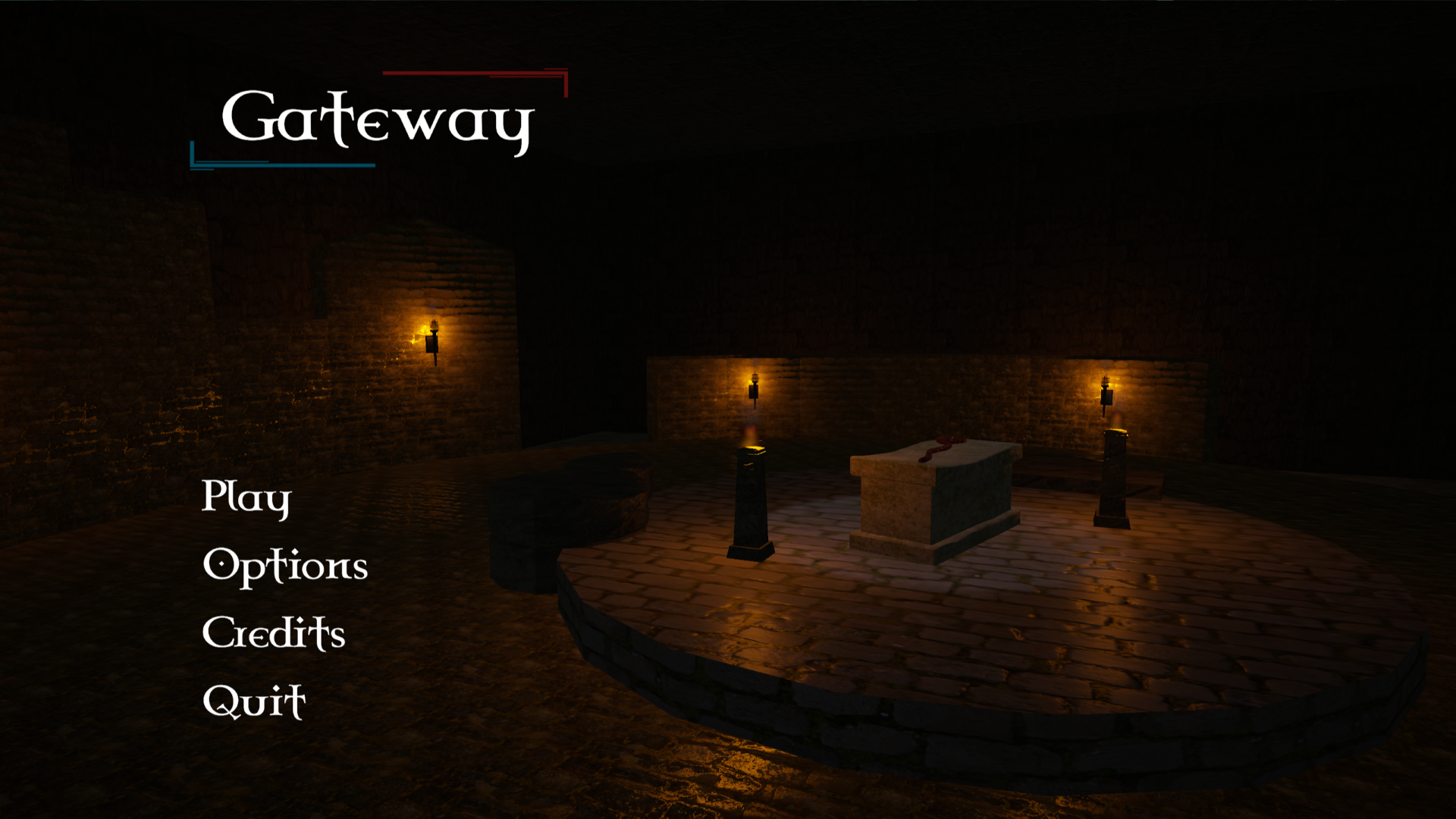
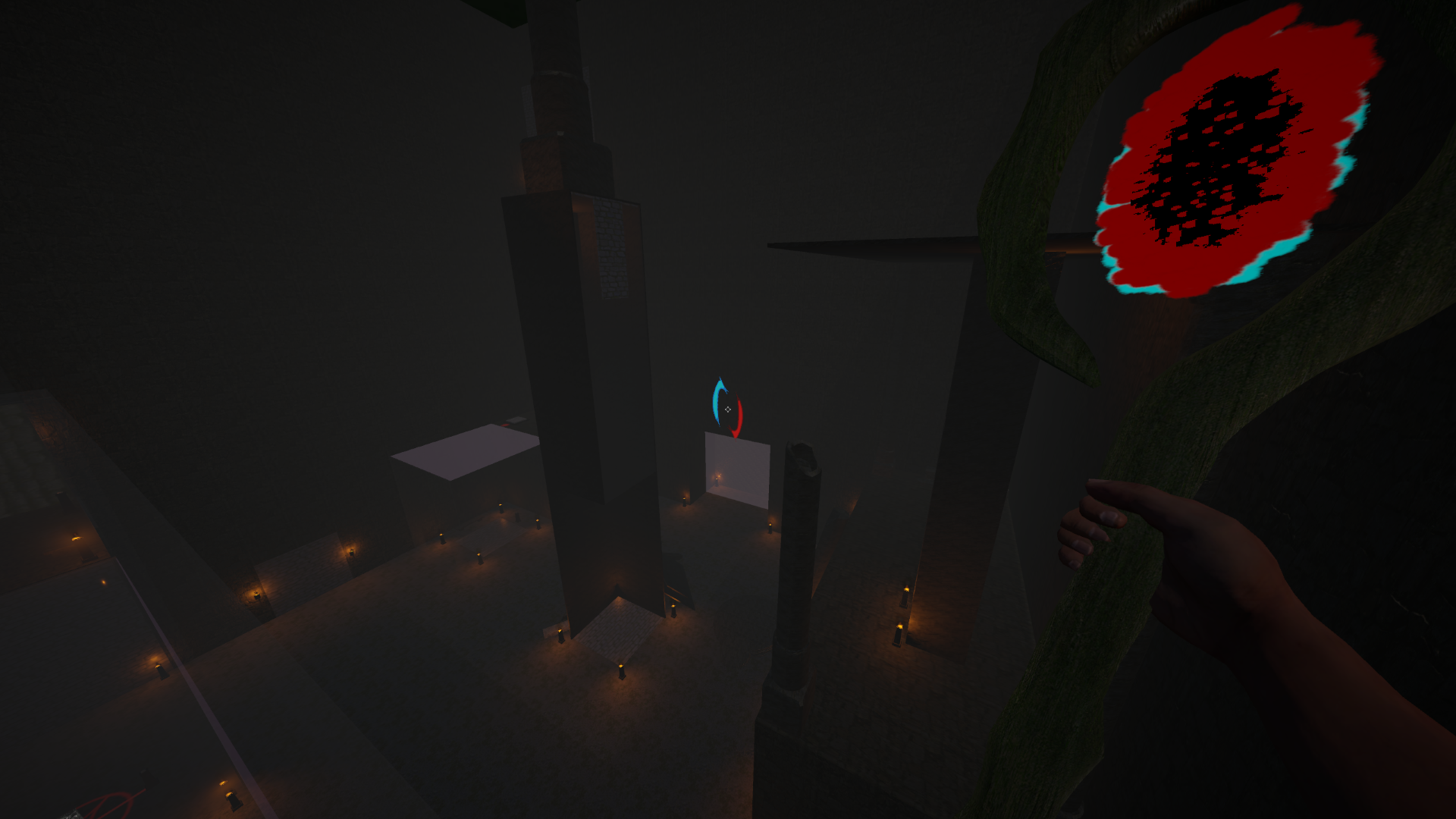
Created for a school project, Gateway manipulates mechanics from Portal and implements them in a dark fantasy environment.
While browser gameplay is supported, it is highly recommended to download and play the Unity build. Currently, the browser version does not support resolution change, display type changes, VSync, target frame rate changes, and certain audio effects.
Controls:
- WASD - Movement
- Space - Jump
- Mouse - Look
- Left Click - Place Blue Gateway
- Right Click - Place Red Gateway
- E - Pick up/Interact
- P (Web)/Esc (Build) - Pause
Options
- Mouse sensitivity, brightness, audio volume, display settings, and more can be changed in the Options menu
- Controls can be changed in the Options > Keybindings menu
How to Play:
- To begin playing, press the Play button and choose the first trial.
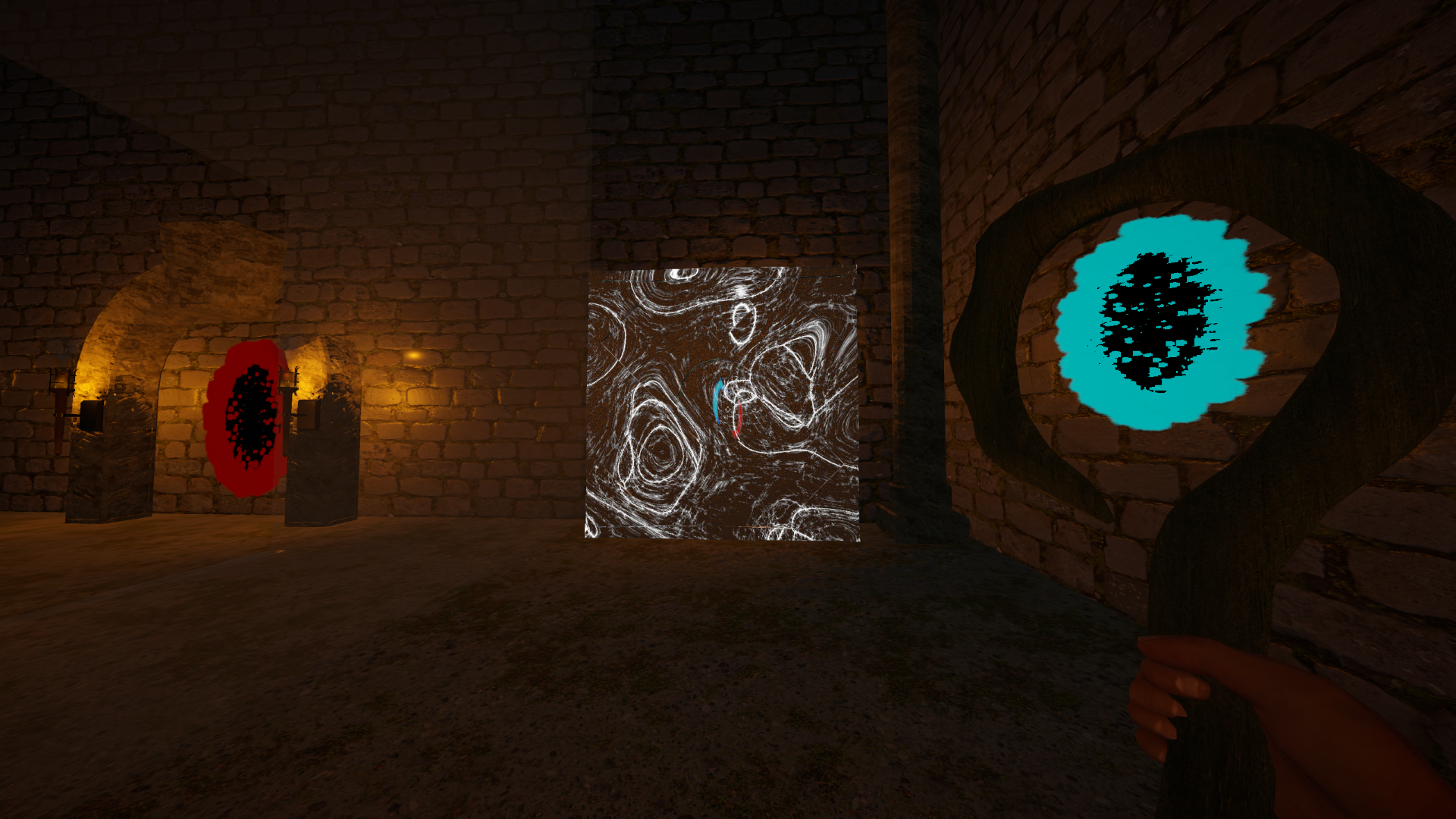
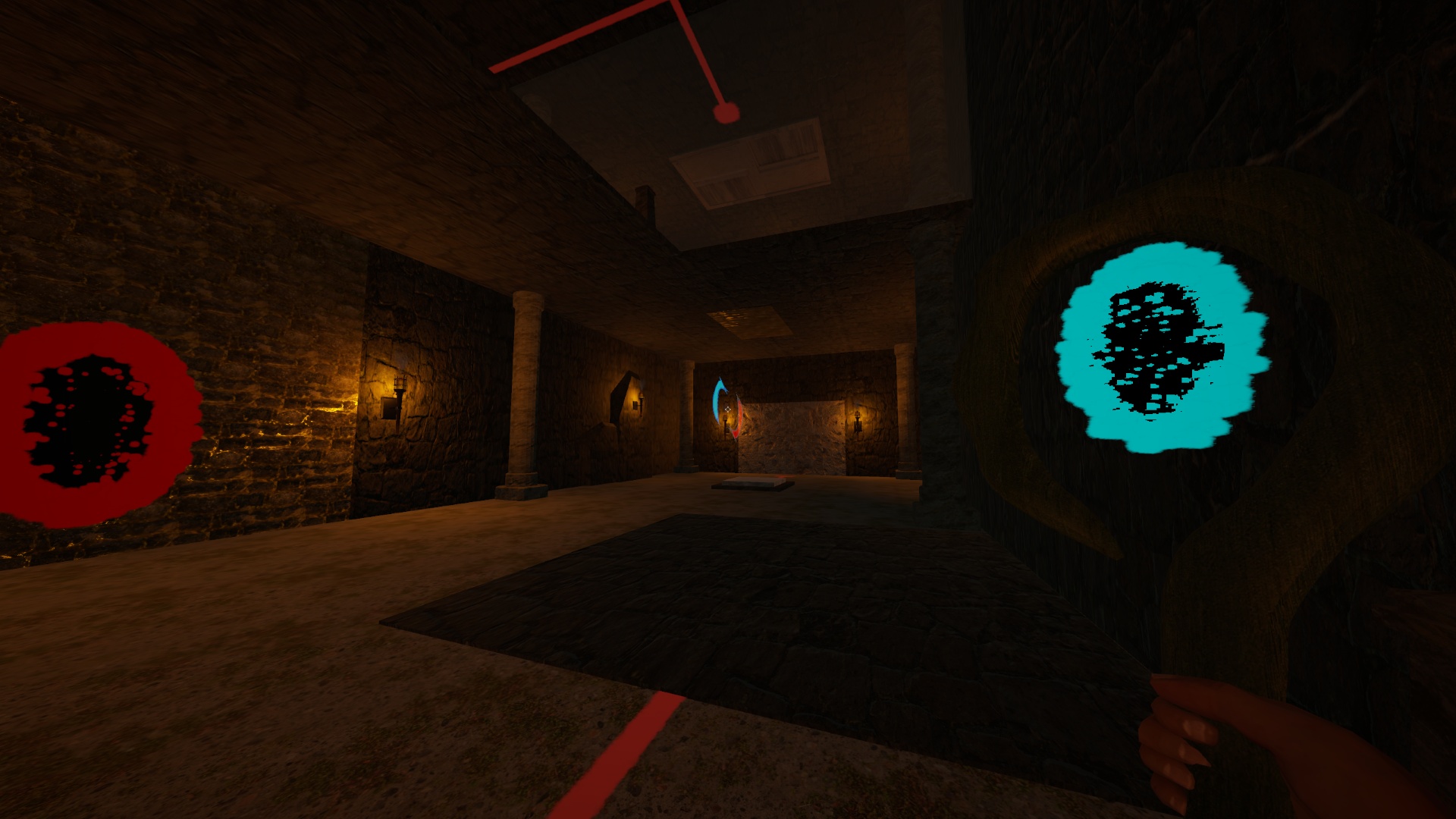
- Walking up to a staff and pressing the player's "place gateway" button will allow the player to place gateways corresponding to the staff's gem's color.
- When two gateways are placed down, walk into one to be teleported out of the other. This also applies to puzzle cubes.
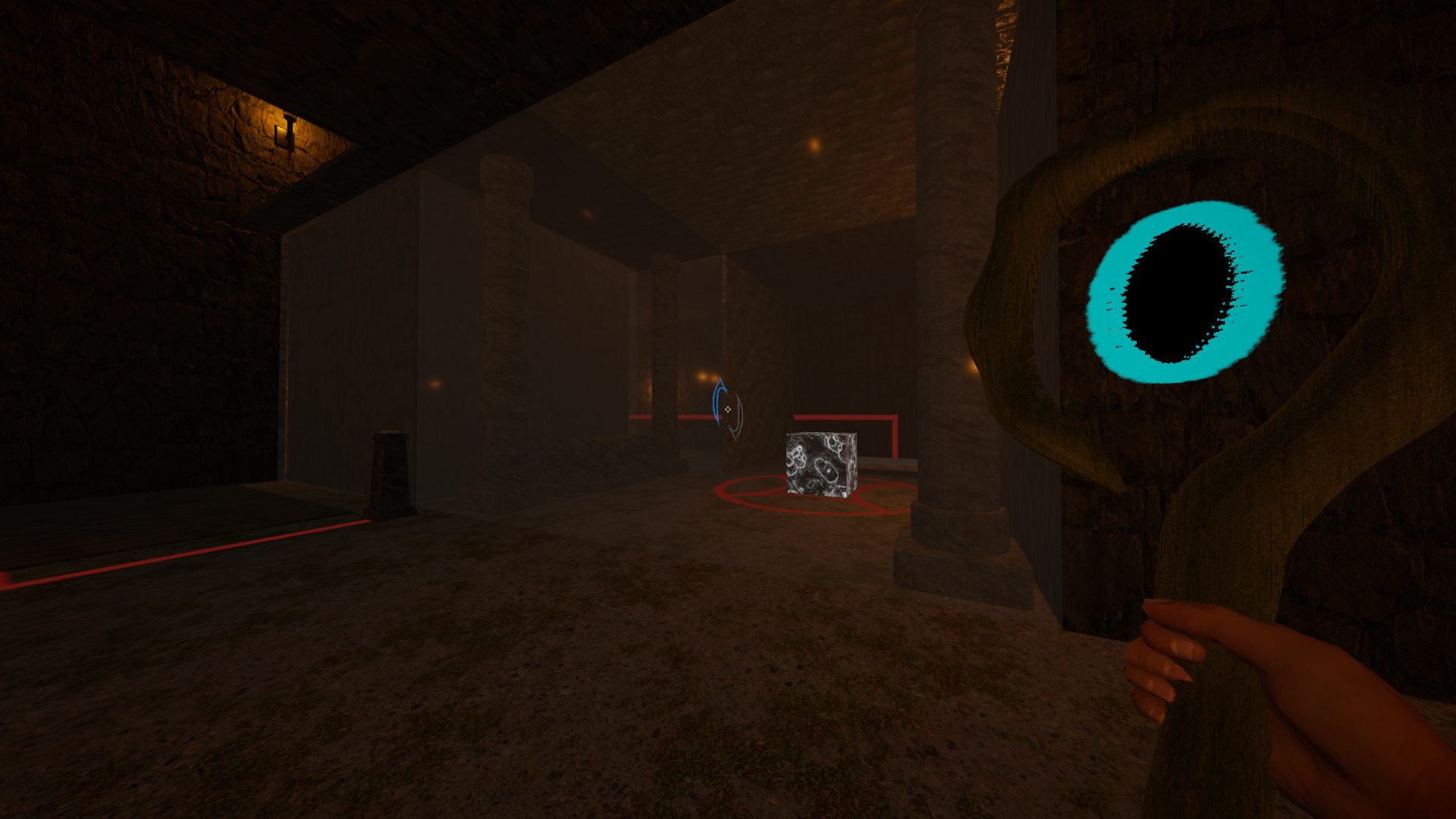
- Puzzle cubes are glowing cubes which can be picked up and moved around to complete puzzles. In order to pick up a the puzzle cube, look at it and press the "interact" button.
- You can place the puzzle cube on Pressure Plates to activate certain environmental mechanics. These can also be activated by the player standing on them.
- When you go through a gateway, your orientation and velocity will be preserved, and you will be pushed outside of the destination gateway in the direction it is facing.
- You can only place gateways on specific materials. In this case, those materials are a light gray brick wall and a dark gray-green brick wall.
- Placing a blue gateway on a "passthrough" surface places a red gateway on the other side of the surface, if there is room.
- If the player is having a hard time seeing the difference between these materials and the environment, it is recommended to increase their brightness in the Options menu
- The player can interact with buttons on pedestals. Pressing these buttons multiple times will reset their timers, causing their effects to continue for longer.
- Anti Magic Fields (AMFs) remove all of a player's placed gateways when they pass through. It also respawns cubes. These can be triggered by pressure plates or buttons.
- When a player finishes a level, they must walk through the black wall at the end of the level. This teleports them to the next one.
- The player's crosshair indicates whether or not they can use a specific gateway and whether or not a specific gateway is down. A gray border means they cannot use this gateway on their own, a non-filled icon indicates that a gateway is not placed, and a filled icon indicates that a gateway is currently placed.
- When hovering over a "passthrough" surface, an icon will appear next to the player's crosshair.
Timer
- A timer can be turned on and off in the Options menu.
- This timer will be reset on selecting a trial, but will persist between trials.
- Your best time is recorded in the Extra section in the menu.
- For a time to save, the run must have began in Trail 1 and continued to the end of the game in one sitting. The player cannot leave a trial and resume later.
Tips
- If its difficult to see the different gateway walls, try increasing your brightness
- If you would like to have a more moody or immersive experience, try dropping your brightness down a bit
- The puzzles in this game are difficult. Take your time, and, if needed, take a look at the solutions below. There's no shame in needing a bit of guidance in a puzzle game as long as you're having fun!
- After playing through the game once, try setting/beating a personal best. So far, to the developers, a sub-20 minute run is great, and a sub-15 minute run would be very impressive!
Solutions
- The following playlist contains solutions for all 12 trials
Download
Install instructions
How to play from the Gateway Unity build folder:
- Download the Gateway.zip file
- Extract the file's contents
- Navigate to the gateway.exe file
- Run this file
Development log
- 1.1.0 - Statistics Update36 days ago
Leave a comment
Log in with itch.io to leave a comment.